Level 3
January 3, 2021
Solved

All e-filed returns missing from ProConnect Tax Dashboard

  • January 3, 2021
  • 1 reply
  • 20 views

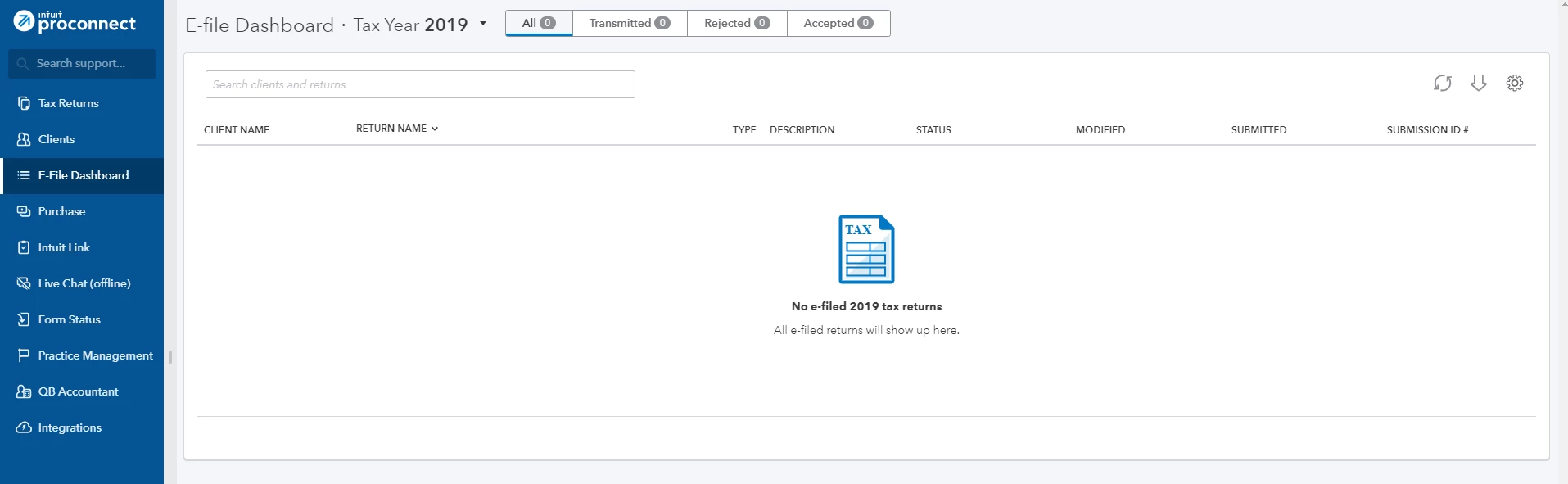
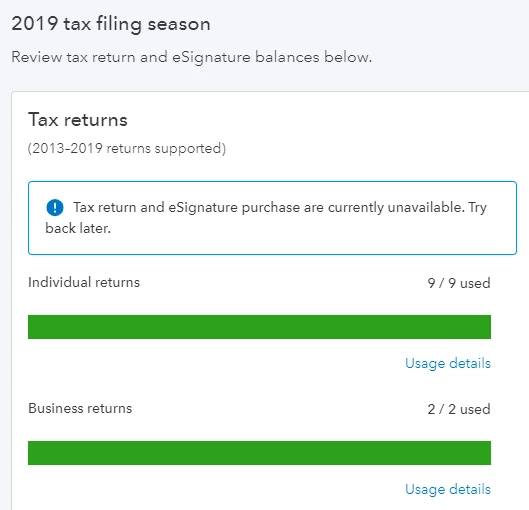
None of the returns that I filed are appearing on my ProConnect dashboard ... the purchase history shows the quantity of returns purchased and used, but the actual dashboard doesn't have the returns. Is anybody else experiencing this?

Clicking the "Usage Details" of the purchase history shows none of the returns that were used/filed.

This topic has been closed for replies.
Best answer by itonewbie

Not a problem with mine.  Still see all the e-filed returns and status.  Don't see this being reported by others in the FB group either.

My best guess is that you have made your clients inactive.  Once you complete the steps below to restore each of the clients for whom you had e-filed a return, you should then see the status of their 2019 returns.

  1. Click on Clients on the left panel for the Clients dashboard;
  2. Click on the View inactive clients button in the top-right corner, next to the Add client button;
  3. Under the CLIENT NAME column, click on the name of your client, whom you would like to re-activate; and
  4. On the next screen, click on the Make active button in the top-right corner.

In case the clients you had prepared and e-filed 2019 returns for are all active but you still don't see their correct status, you will need to call Support when they re-open tomorrow as only they will be able to resolve that for you.

1 reply

itonewbie
itonewbieAnswer
Level 15
January 4, 2021

Not a problem with mine.  Still see all the e-filed returns and status.  Don't see this being reported by others in the FB group either.

My best guess is that you have made your clients inactive.  Once you complete the steps below to restore each of the clients for whom you had e-filed a return, you should then see the status of their 2019 returns.

  1. Click on Clients on the left panel for the Clients dashboard;
  2. Click on the View inactive clients button in the top-right corner, next to the Add client button;
  3. Under the CLIENT NAME column, click on the name of your client, whom you would like to re-activate; and
  4. On the next screen, click on the Make active button in the top-right corner.

In case the clients you had prepared and e-filed 2019 returns for are all active but you still don't see their correct status, you will need to call Support when they re-open tomorrow as only they will be able to resolve that for you.
---------------------------------------------------------------------------------Still an AllStar
Level 3
January 4, 2021

You are 100% correct. It worked. Thank you.

itonewbie
Level 15
January 4, 2021

NP.  Glad you had that resolved.

---------------------------------------------------------------------------------Still an AllStar


