


How to: Add a Photo to Your Profile
A custom profile photo helps personalize your community presence and makes it easier for other users to recognize you in discussions. Your profile photo appears next to all of your posts throughout the Community.
Follow the steps below to update your profile photo.
- Sign in to the Community.
- Select your profile avatar in the upper-right corner of the page, then select Settings.
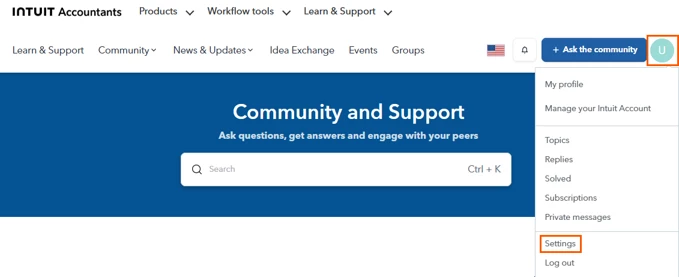
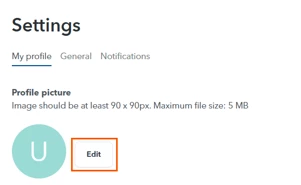
- On the Settings page, select Edit next to profile picture.
- In the file browser window, locate and select the image you'd like to upload, then select Open.
- Preview your image and click Apply.
- Scroll to the bottom of the page and Save changes.
Note: Images must be at least 90 x 90 pixels. The maximum file size is 5 MB.
Once you've completed these steps, your profile image will appear next to your posts in the Intuit Accountants Community.
If you have trouble updating your profile picture, reply to this post for assistance.
We look forward to seeing your photo in the Community!
Cheers,
Intuit Accountants Community Team





